Update 6/18/2020 - Some readers reported the error below. I’m working to investigate the root-cause:

An error occurred during the upgrade. Contact Salesforce Customer Service or install Salesforce For Outlook again: Unable to access your Outlook data. Review the appropriate log file for details.
The database file is locked
database is locked
^ I’m told that the setting to not display upgrade messages to end-users is broken on Salesforce.com. If you disable the messages, they still arrive. This was taken from v3.4.08.222. If it ain’t broke, don’t click that banner!
Update 2/21/2020 - A reader provided the following registry fix to resolve the issue shown below. It seems to fix the problem without requiring that the Office version is rolled back to semi-annual.
Registry: HKEY_CURRENT_USER\Software\Microsoft\Office\16.0\Outlook\Options
Change the BrowserEmulationModeConfig to 3
Update 12/28/2019 - Salesforce’s latest issue is caused by Office365 version 16.0.12228.20332. The toolbar will continuously spin after Office automatic updates complete on Salesforce For Outlook v3.4.7.16. The only fix I have found at this time is to downgrade Office to the Semi-annual channel version 1908 (11929.20516)
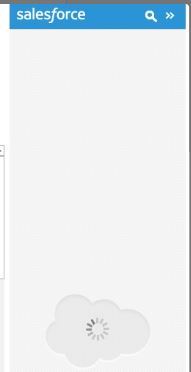
Open CMD as admin while logged in as the user:
“C:\Program Files\Common Files\Microsoft Shared\ClickToRun\OfficeC2RClient.exe” /changesetting Channel=Targeted “C:\Program Files\Common Files\Microsoft Shared\ClickToRun\OfficeC2RClient.exe” /update user
After the downgrade completes, you may need to repair the toolbar using its installer package. If it still doesn’t show up, do a full Online Repair of Office365. Salesforce support knows nothing about when this will be fixed on either side (SF or Microsoft), so don’t waste your time.
Update 1/3/2019 - Salesforce refuses to fix the issue below. To compound the issue, Microsoft has also not responded with a hotfix. Neither organization has taken any action in over 120 days. Salesforce support told me they are ‘certain’ a fix is coming. I’d say that length of time is concerning where the February date is closing in for the end of life on the product. If you ask me, this is their way of making people move off of the product. After all of this time, they couldn’t leave us with a stable version of the tool? The support was so clueless I had to point them to my blog to help them with a massive backlog of cases for the display issue. Two weeks had gone by, and they didn’t have the information I posted below. They couldn’t care less… Do you really trust the same developers to lead you to a better product after years of hell? Lightning Known Issues. Check out Thrive, Komiko or Invisible.io
Display Issue with the left side of screen- 9/13/2018: An update to Microsoft Office breaks the Salesforce toolbar visually and causes it to go to the left side of the screen. In some cases, it’s all white but does not function properly after installing Office365 Business v1808 16.0.10730.20088 using Salesforce toolbar 3.2, and 3.4 in our testing. I found this broke the Mimecast toolbar as well and likely other add-ins for Outlook.
The workaround is to go into File -> Options -> General -> User Interface Options (header) -> Select Optimize For Compatibility and restart the application.
Note: This option doesn’t appear unless the user is on the broken version. I’ve found it did not exist in v1807, so you won’t find it if it’s an unrelated issue. Also, when you first open the Options window, it’s about 25% scrolled down. You have to scroll up to see this option.

If that doesn’t work then to roll back to Version 1807 (Build 10325.20118) using this process to run the command, which can both upgrade and downgrade despite using the word update. If you run the command below, it will check for Updates and roll you back to a version that fixes this issue. I’ve also seen it fix a problem where the ‘Add Contact’ form is not loading or displaying correctly.
Rollback:
officec2rclient.exe /update user updatetoversion=16.0.10325.20118
(Remember to disable Automatic Updates under File -> Office Account -> Update Options -> Disable Updates).
A fix from Microsoft is forthcoming based on my discussion with tech support, but nobody knows when that’s coming down…
Original Article:
Salesforce For Outlook is a nightmare for support, and if you’ve found this page, you probably know. I’ve seen many issues with the tool over time, the most frequent being that it disappears. My first experience with SFO came in Office 2007, a place where it also disappeared when it was in the ribbon. I think after 10 years of toolbar horror, it’s about time I made a guide to fixing it, and also to outline the reasons it goes wrong. Most folks at Microsoft and Salesforce agree that the tool is buggy, and in the real world, we tend to see it breaking Outlook in terrible ways.
Salesforce is releasing a product called Lightning, but it’s hard to know whether that’s the best move to make, at least for now. You’ll have to have a specifically expensive plan with Salesforce to do any meaningful testing, as they won’t allow a hybrid environment with both tools. You literally have to cut the environment over, and then force all users onto the new tool all at once. But how do you migrate them? Well, that’s one of those things they do to make life harder.
I’d highly recommend waiting for a few releases and reviewing the bug fixes and known issues. This will give you an idea of what kind of bugs, the impacts, and how many are happening per-release. Also, you can see how frequently these bug fixes are coming out. SFO has many minor versions, and high impacting bugs, which on paper you can see is a nightmare.
Let’s talk about known issues, and then a list of how to fix them, at least most of the time. Bugs are tagged with (V) for Version Specific, and sometimes it includes a link to the bug on Salesforce.com KB, meaning we’ve seen it fixed by upgrading, or downgrading to other versions.
***Update 9/25/2018 - Keep in mind that in Windows of 19′ you will not be able to put new users on the toolbar, and there will be no development updates or new fixes. If you have an environment that has 75 users, for example, the 76th person who starts after this time will not be able to use the toolbar. You will be struck by Lightning, whether you like it or not!
A few outside links to help you out:
**** Known Bugs ****
- Disappears, flickers, or otherwise is not visible in the Outlook main window, or in compose e-mail windows.
- Users try to minimize the Toolbar to save space by dragging the actual frame all the way over to the left and shortening the add-in width, causing Salesforce to crash.
- Locks up CPU, or consumes high Memory when too many New E-mail, Drafts, are open in Outlook. (V)
- Fails to install due to Windows .NET 4.x framework being detected as connected, but it does not continue. (V)
- It does not uninstall completely, and re-install does not fix an issue.
- Multi-Factor code window indicates code is wrong/expired, but it is correct
- Installation fails due to conflicting All Users - My Profile already completed
- After installing, Outlook crashes and has to be reinstalled completely (V)
- Side Panel acts unstable or has aesthetic issues when collapsed. Includes white blotches, flickering, and a disproportionate width to the normal position. (V)
- The toolbar shows Not connected to Salesforce in Windows 7 OS using Internet Explorer
- E-mail stuck in Outbox, can not send outbound (V)
- Plug-in does not register with Outlook, and the ADXRegister process does not take place. (Fix)
- You are not connected to the Salesforce message displayed in Side Panel (Fix) (V) Fixed in 3.2.3 bug from hell ID W-3436943.
- Save button is grayed out when installing, check here for the fix to that issue. It’s usually because registry keys exist for another version of Office, like 15.0 vs. 16.0. This happens on new machines where the vendor pre-loaded Office 365, for example, and you installed over it instead of activating the one on the machine.
- Error: The File ‘adxregistrator.exe’ is not marked for installation. (Fix)
**** General Fixes in Salesforce For Outlook ****
- Latest, or a higher version is a great first step - Keep an offline archive of versions, and make sure you’re tracking which versions have bugs. Salesforce is a company that releases many incremental fixes, sometimes just a day after doing a minor release. 3.1.1 could turn into 3.2 tomorrow, and be the bug fix you needed.
- Disable, and then re-enable the Add-in from the COM Add-ins via Outlook and it might come back when you reopen the application
- Close the System Tray icon, and reopen it, then reopen Outlook. Sometimes the tray hangs up and can come back with a restart of this process
- Turn off Hardware Acceleration in Outlook via the Options, then relaunch Outlook
- If it’s crashing Outlook, make another Profile and don’t create an e-mail account. You’ll use this to go in and disable the add-in as a workaround. More info here
- Tell the user to BCC as a workaround, located hereSetup > Personal Setup > Email > Email to Salesforce
- Delete the Sync.DB file located in the Salesforce For Outlook directory, under the DB folder, will resync up SFO, and it will ask to login again.
- If you get an MFA code failure, but you put in the right code, click Resend code in some options to goes right to Approve.
- Complete removal means uninstall, and then clean out C:\Users\username\AppData\Roaming\salesforce.com, and C:\Users\username\AppData\Local\Programs\salesforce.com manually. In an All Users install, it’s here C:\Program Files\salesforce.com. More info here