Screenshots of the PowerApp are below. The one major limitation of this solution is that if you put an empty folder within a folder structure, it doesn’t trigger the update but instead shows a failed run, which isn’t actually a problem. Only files within folders will successfully start and run the job. That applies to folder -> folder -> folder -> folder -> folder -> file or as deep as you need to go, and it works very quickly, usually within a minute.
1. Create a new automated app named ‘FolderModified.‘

When a file is created or modified (properties only)

2. ‘CFileName‘
{ "inputs": "@{triggerOutputs()?['body/{FilenameWithExtension}']}-@{equals(triggerOutputs()?['body/IsFolder'],false)}", "metadata": { "operationMetadataId": "c697bc2a-8bcd-44ad-80bf-87f29e9b4455" }
3. ‘CFolderPath‘
{ "inputs": "@triggerOutputs()?['body/{Path}']", "metadata": { "operationMetadataId": "ebace1b1-1fa1-4f76-8e97-4344ffe8c11b" }}4. ‘VArrFolderPath‘

{ "inputs": { "variables": [ { "name": "VArrFolderPath", "type": "array", "value": "@split(outputs('CFolderPath'),'/')" } ] }, "metadata": { "operationMetadataId": "c4aa6183-5a4c-4451-b045-97a8c020a83f" }}5. ‘VPath‘

{ "inputs": { "variables": [ { "name": "VPath", "type": "string" } ] }, "metadata": { "operationMetadataId": "9f50d26d-5624-4ef0-b02a-b98a41957d54" }}6. ‘CUser‘

{ "inputs": [ { "Key": "@{triggerOutputs()?['body/Editor/Claims']}" } ], "metadata": { "operationMetadataId": "e80df3fb-feec-4ea5-a683-ad7a5d9b5c65" }}7. ‘CModified‘
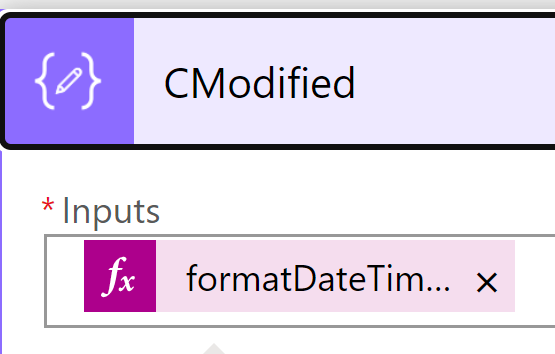
{ "inputs": "@formatDateTime(triggerOutputs()?['body/Modified'],'g')", "metadata": { "operationMetadataId": "beb03772-baf0-4615-bc04-7fd5650f46f9" }}8. ‘CProperties’

{ "inputs": [ { "FieldName": "Editor", "FieldValue": "@{string(outputs('CUser'))}" } ], "metadata": { "operationMetadataId": "178a3d12-1338-456d-ab40-c9d1f4214bea" }}'
9. ‘VFilterFolderPath‘
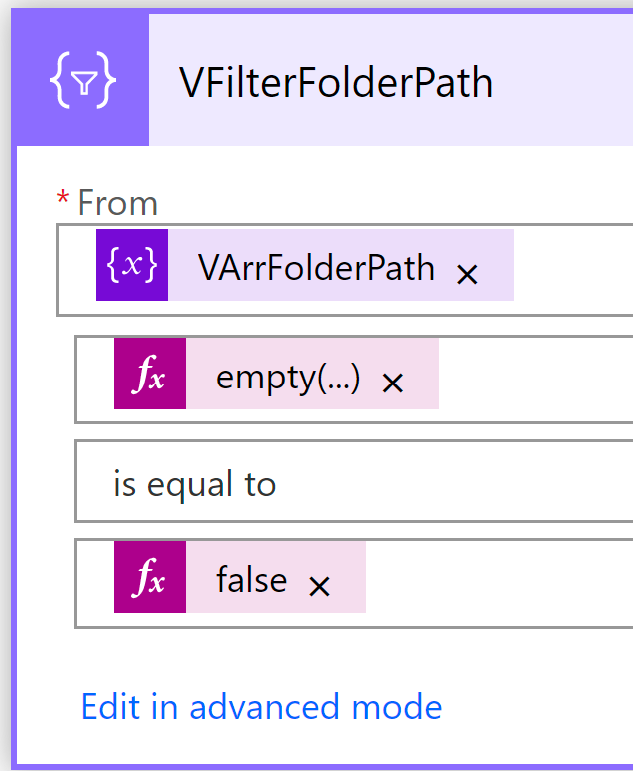
{ "inputs": { "from": "@variables('VArrFolderPath')", "where": "@equals(empty(item()), false)" }, "metadata": { "operationMetadataId": "4a001a83-8073-4ff1-9e81-5e3a7073b027" }}10. ‘IFolders‘
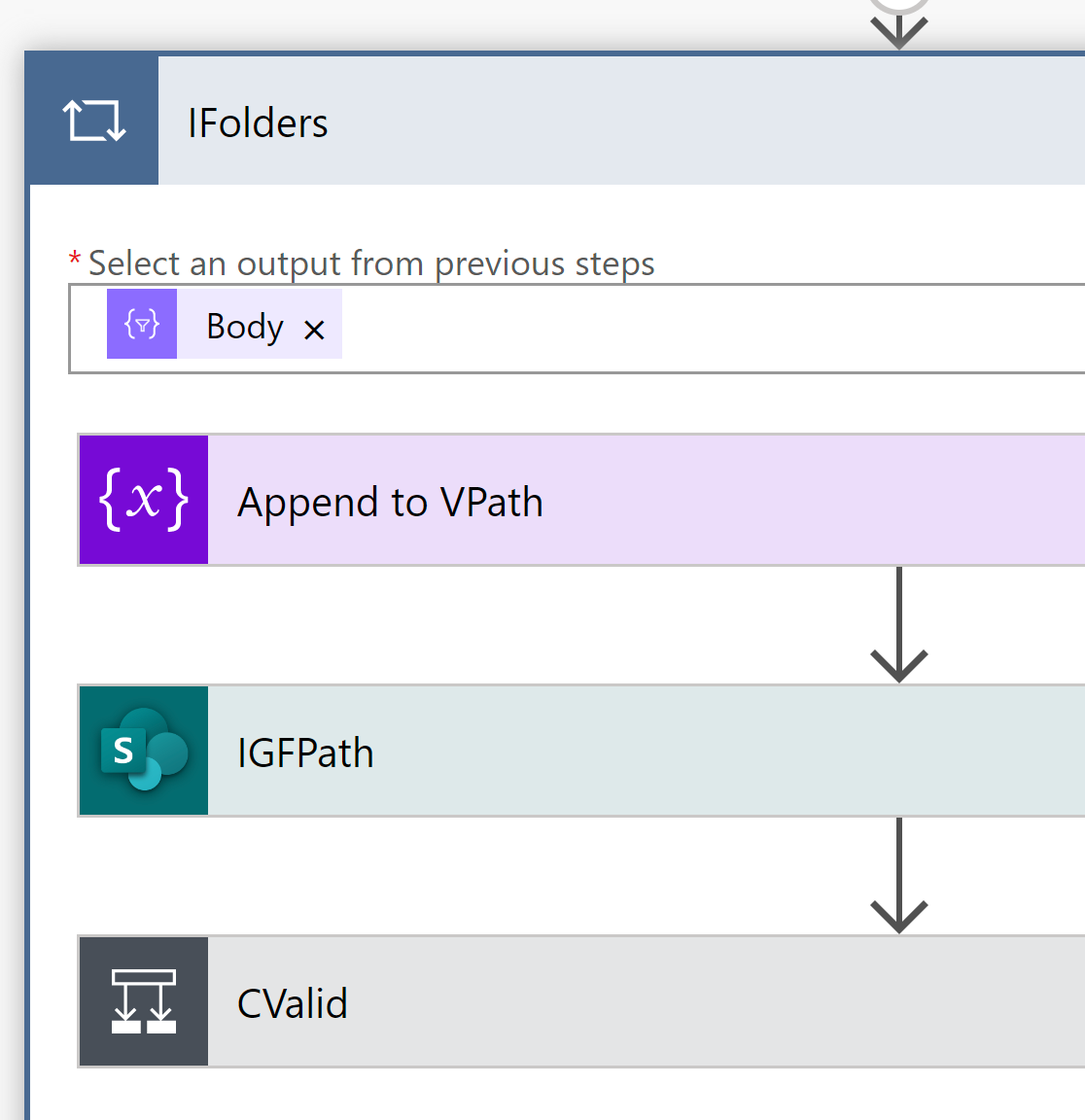
10.1. ‘Append to VPath’
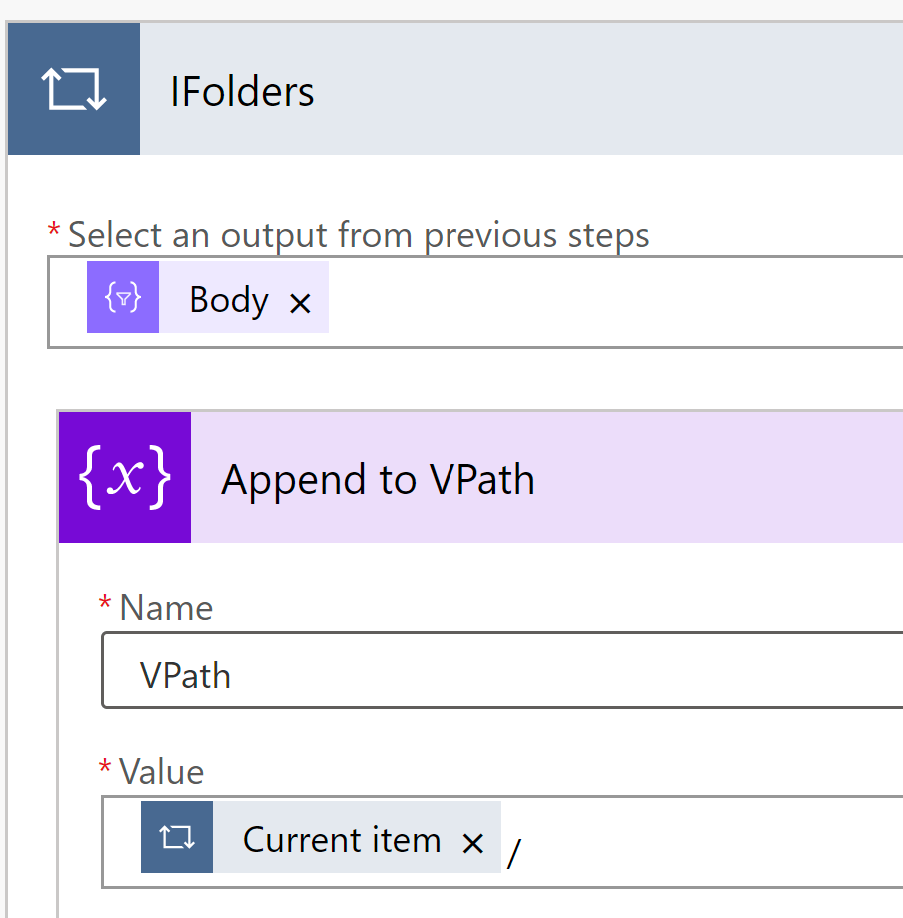
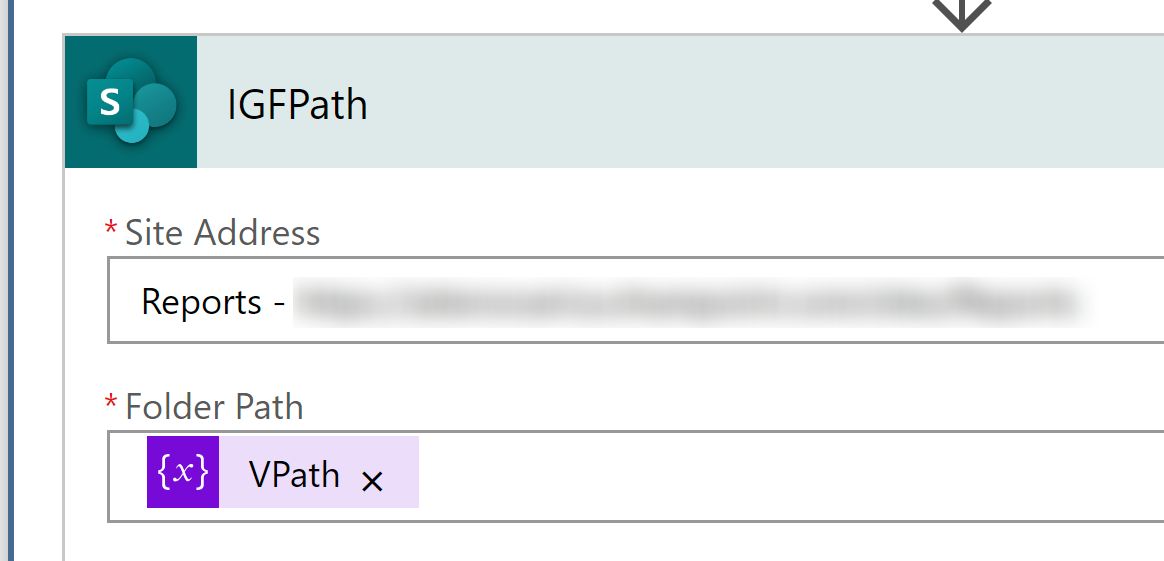
10.2. ‘IGFPath’
10.3. ‘CValid’

Now edit the ‘HTTP‘ request to SharePoint:

{ "inputs": { "host": { "connectionName": "shared_sharepointonline_1", "operationId": "HttpRequest", "apiId": "/providers/Microsoft.PowerApps/apis/shared_sharepointonline" }, "parameters": { "dataset": "https://yoursite.sharepoint.com/sites/SITE", "parameters/method": "POST", "parameters/uri": "_api/web/lists/getbytitle('Documents')/items(@{outputs('IGFPath')?['body/ItemId']})/validateUpdateListItem", "parameters/body": "{\n\"formValues\": @{outputs('CProperties')},\n\"bNewDocumentUpdate\": false\n}" }, "authentication": "@parameters('$authentication')" }, "metadata": { "operationMetadataId": "5c59f1f4-cd00-4bd9-aa59-bde4deaa317d" }}*** Note:
getbytitle('Documents') refers to the name of the Document Library. '/Shared Documents/ (Default) = Documents', or your 'Custom Name' for it.***Success!
- Top-level Folder will show activity within, not just when it was created:

- Objects within or within the sub-folders shown in the Last Modified above:

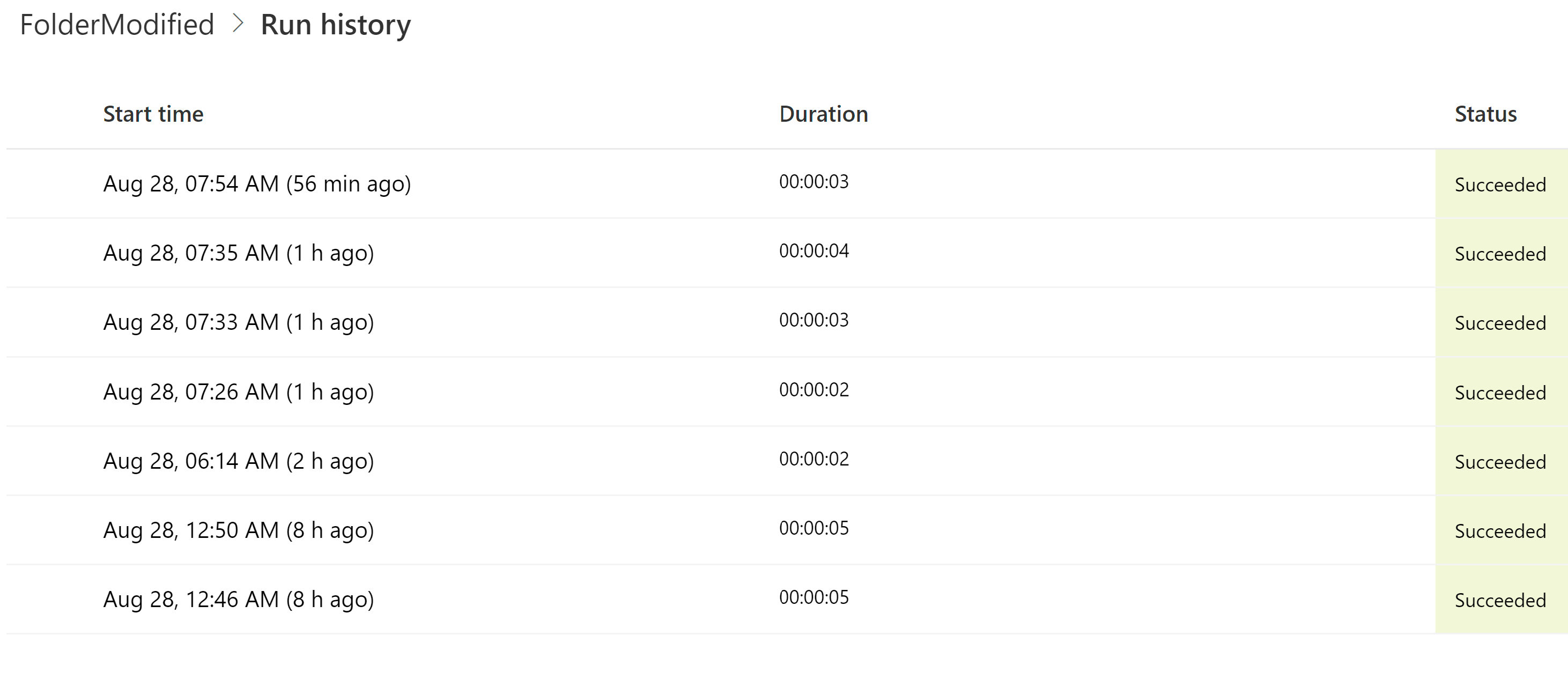
- Short runtimes:
Just so you know, you should DISABLE this before migrating large amounts of data. The jobs tend to trigger 422 throttling errors in bulk and jam up with performance issues in the queue that hang up jobs. This forces you to recreate the object or copy it to a new version and delete the old one to flush the job queue.
Note #2: I’ve also noticed that copying files as the same user that the PowerApp is running under can create a loop that says the account keeps touching files/folders long after you’ve completed the job. I keep this account stable because activating MFA breaks all those permissions, and you have to go back into each Flow to repair it.
Note #3: The easiest way to duplicate this is by creating a template and using the ‘Save As’ feature to clone another copy. You’ll have to run these on each Document Library, and if you’ve got a large Intranet, that can be quite a few jobs. Just so you know, you have to edit 2-3 locations within the job to tune it for the new destination.
Note #4: You may receive ‘Failed’ notifications about these Apps from Microsoft. These are from folders being created and expected behavior, not indicating that the app itself is broken or not functioning correctly. I have it running on 35+ sites with minimal overhead or issues, other than a job that doesn’t run for a certain period can be automatically disabled by Microsoft. Still, you get an email warning about it.
Have a better way to do this? Let me know!